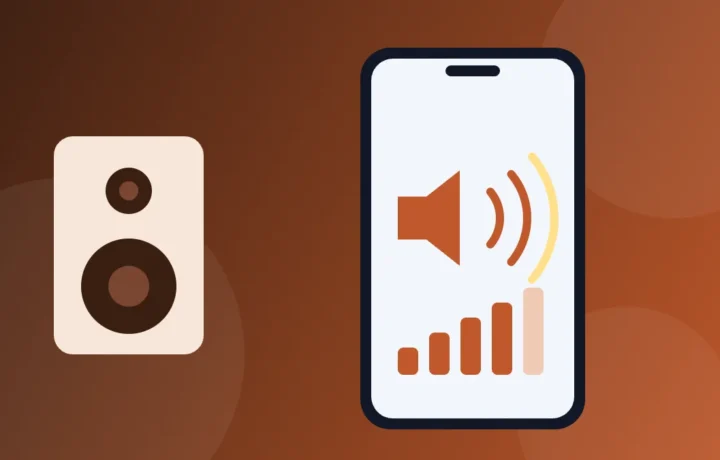
O vídeo está baixinho, a pessoa na ligação parece estar longe e a música some no meio do barulho da rua. Antes de culpar o alto-falante ou instalar um app que promete volume extra, vale olhar as configurações: muitas vezes o som está preso por um limite, um equalizador ou uma capinha. Este guia mostra o que conferir no Android e no iPhone, quando um app de acessibilidade ajuda de verdade e como aumentar o som sem prejudicar a sua audição.
Prices and availability checked on Google Play and the App Store in Brazil in November 2026.
In a few words
- Confira se você está subindo o volume certo: mídia, ligação e toque são controles separados.
- Veja se não há um limite de volume ligado, no alto-falante ou nos fones.
- Tire a capinha e limpe a saída de som com cuidado, sem líquidos.
- Para quem tem dificuldade para ouvir, o Amplificador de som do Google (com fones) e as Adaptações de Fone de Ouvido do iPhone ajudam de verdade.
- Apps que “forçam” o alto-falante podem distorcer o som e danificar a peça. Uma caixa de som Bluetooth resolve melhor.
Primeiro, confira o básico
O celular tem vários volumes, e o botão lateral muda só um deles por vez. Na ajuda do Android, o Google explica que o botão altera o volume do que está acontecendo no momento: se um vídeo está tocando, muda o volume do vídeo; se nada está tocando, muda o volume de mídia. No iPhone, a Apple descreve algo parecido: com áudio em reprodução, os botões controlam a mídia; fora disso, controlam o toque e os alertas.
On Android
- Pressione um botão de volume.
- No painel que aparece, toque no Menu, à direita.
- Ajuste cada controle: Volume da mídia (músicas, vídeos e jogos), Volume das ligações (a voz da outra pessoa durante uma ligação), além de toque, notificações e alarme.
- Se o celular estiver pareado com mais de um aparelho Bluetooth, use a opção Tocar mídia para escolher onde o som vai sair.
Segundo a ajuda, alguns desses passos valem a partir do Android 12, e as marcas podem mudar os nomes. Aproveite para conferir se o modo Não Perturbe não está silenciando o que você quer ouvir.
On iPhone
A Apple sugere, quando o som some ou sai baixo, desativar o Modo Silencioso, desligar o Não Perturbe (em Ajustes, Foco) e testar o alto-falante: em Ajustes, toque em Resposta Tátil e Som (em algumas versões, Sons) e arraste o controle de toque e alertas para os lados algumas vezes. Se não sair som nenhum, o alto-falante pode precisar de assistência.
Veja se não há um limite de volume ligado
Os sistemas trazem limites pensados para proteger a audição. Eles são úteis, mas, se alguém ligou e esqueceu, o volume parece “travado”.
Limites do iPhone
No manual do iPhone, os limites ficam em Ajustes, Resposta Tátil e Som. Os nomes podem variar conforme a versão do iOS:
- Alto-falante: em Alto-falante Integrado, a opção Limite de Volume tem a chave Limitar Volume Máximo e um controle deslizante. Na mesma seção, Redução de Sons Altos atenua os picos.
- Fones de ouvido: em Fones de Ouvido, a opção Segurança de Fone de Ouvido tem a chave Redução do Volume, também com controle deslizante.
- Controle dos pais: com o Tempo de Uso configurado para um membro da família, é possível impedir que o limite do alto-falante seja alterado. Se você não consegue mudar, pode ser isso.
Limite de volume nos Samsung Galaxy
A Samsung também tem um limitador de volume de mídia, que, segundo o suporte da marca, vale para quando você usa fones de ouvido ou caixas de som Bluetooth e mostra um aviso ao chegar no limite. Se o volume dos fones não passa de certo ponto, procure essa opção nas configurações de volume, em Sons e vibração.
Equalizador e efeitos de som
Equalizador não aumenta o volume máximo, mas muda quais sons ficam em destaque. Às vezes, realçar a faixa da voz deixa um vídeo ou uma ligação mais fácil de entender do que subir tudo.
- On Samsung Galaxy: em Configurações, Sons e vibração, Qualidade sonora e efeitos, ficam o Dolby Atmos and the Adapt Sound. A Samsung avisa que alguns efeitos não funcionam com o Dolby Atmos ligado e que, se aparecer ruído ao tocar áudio ou vídeo com ele, a recomendação é desativá-lo. O Adapt Sound ajusta o som ao seu jeito de ouvir, para chamadas, músicas e vídeos, mas pode não funcionar bem com a sincronização de volume do Bluetooth ligada.
- No iPhone: em Ajustes, Apps, Música, a opção Equalizador muda o som do app Música. A Verificação de Som, logo ao lado, normaliza o volume entre as faixas: ela evita que uma música soe muito mais alta que a outra, mas não aumenta o volume.
Se a voz soa abafada ou metálica depois de mexer nisso, volte o equalizador para a opção padrão antes de tentar outra coisa.
Para quem tem dificuldade para ouvir: recursos de acessibilidade
Amplificador de som, of the Google (Android)
The Amplificador de som é um app gratuito de acessibilidade do Google, com mais de 100 milhões de downloads na Google Play. Segundo a loja, ele foi feito para tornar conversas e sons próximos mais acessíveis para pessoas com perda auditiva: filtra ruídos, aumenta sons baixos e permite reforçar frequências graves ou agudas, até separadamente para cada ouvido.
Ponto de atenção: ele funciona com fones de ouvido, com fio ou Bluetooth, e não deixa o alto-falante do celular mais alto. A ajuda oficial informa que o app já vem instalado no Pixel 3 ou mais recente e em alguns outros aparelhos Android, e que amplificar a mídia do próprio celular (vídeos e músicas) é um recurso dos Pixel com Android 10. A loja pede Android 8.1 ou mais recente. Com alguns fones Bluetooth, o som pode chegar com atraso.
- Se o app não estiver no celular, instale pela Google Play.
- Conecte os fones de ouvido.
- Abra Configurações, toque em Acessibilidade, em Amplificador de som e em Abrir o Amplificador de som. Se baixou pela loja, também dá para abrir pela lista de apps.
- Em Microfone do smartphone, ajuste os controles de redução de ruído e de aumento de sons baixos até ficar confortável.
Adaptações de Fone de Ouvido (iPhone)
No iPhone, o recurso parecido já vem no sistema e não precisa de app. As Adaptações de Fone de Ouvido amplificam sons suaves e ajustam certas frequências de acordo com a sua audição. A Apple lista os fones compatíveis, entre eles AirPods (a partir da 2ª geração), AirPods Pro, AirPods Max, EarPods e alguns modelos Beats.
- Open Settings, tap Accessibility and then Audio & Visual.
- Tap Headphone Accommodations and turn the option on.
- Choose whether the setting applies to calls, to media, or to both.
- Use Tune Audio in a quiet place so the iPhone can suggest an adjustment based on the samples you choose.
On the same Audio & Visual screen is the Balance control. If one side of the headphones sounds quieter, check that it is centered.
Case, dirt and the speaker opening
A poorly fitted case or one with a wrong cutout can cover part of the speaker, and dust buildup on the grille muffles the sound. Apple and the Google both recommend the same starting point: remove the case, screen protector and covers, and check whether the speaker opening is blocked or dirty.
- On iPhone, Apple advises cleaning the speaker opening with a small, clean, dry, soft-bristled brush.
- On Pixel, the Google recommends cleaning speakers and microphones carefully with a soft, lint-free cloth.
- Do not use needles, pins or toothpicks, and do not drip cleaning products into the openings. The part is delicate and it is easy to puncture the protective mesh.
- If the sound is still distorted, crackling or hissing even without the case, contact technical support.
Bluetooth speakers and headphones
A phone's speaker is small by nature. When the goal is real volume, for a meeting, a barbecue or a class, a Bluetooth speaker works better than any app, because the sound comes from a device built for that purpose. To listen alone in a noisy place, a good pair of headphones delivers more clarity at lower volume.
With more than one device connected, check where the sound is going: on Android, use the Play media option in the volume panel; on iPhone, check the Bluetooth settings, which show what is connected. And remember that volume limits can also apply to Bluetooth headphones and speakers.
Quick comparison
| Setting | Where it is | What it fixes |
|---|---|---|
| Separate volumes | Volume button and Menu (Android) | Media is low while the ringer is loud, or the reverse |
| Volume limit | Haptics & Sounds (iPhone); Sounds & vibration (Samsung) | Volume that won't go past a certain point |
| Equalizer and effects | Sound quality and effects (Samsung); Apps, Music (iPhone) | Muffled voice or unclear sound |
| Amplificador de som | The Googleapp, Android, with headphones | Trouble hearing conversations and nearby sounds |
| Headphone Accommodations | Accessibility, Audio & Visual (iPhone) | Soft sounds that are hard to hear through headphones |
Beware of apps that “force” the volume
The store has many apps that promise to go beyond maximum volume. The speaker, however, has a physical limit. When an app pushes the signal above what the part was built to reproduce, the result is usually distorted sound, hissing and, over time, wear or damage to the speaker, which may require replacement. If you still want to try one:
- Install only from the official store and check the developer.
- Look at the “Contains ads” and “In-app purchases” notices and read recent reviews.
- Be wary of permissions unrelated to sound, such as contacts and location.
- Raise the volume gradually and stop at the first sign of distortion. If the sound “tears,” uninstall it.
Protect your hearing
Loud volume for long periods harms hearing, and the loss can be permanent. The World Health Organization (WHO) estimates that more than 1 billion young adults are at risk of permanent, preventable hearing loss due to unsafe listening habits, such as listening to loud music for long periods. That is why phone volume limits are allies, not enemies.
- In noisy places, prefer headphones that seal well rather than raising the volume to the maximum.
- Take breaks when you spend a long time with headphones on.
- If you or someone in your family has started asking people to repeat sentences, see a hearing health professional; accessibility features help, but they do not replace an evaluation.
Frequently asked questions
Why is only the call quiet?
On Android, call volume is a separate control: raise the volume button during the call or adjust Call volume in the panel menu. On iPhone, Apple suggests testing on speakerphone; if the hissing continues, the problem may be the network signal, and it's worth trying another location.
The Amplificador de som make the phone's speaker louder?
No. It is designed to be used with headphones and to help people with hearing loss hear conversations and sounds around them. For more volume in a room, use a speaker.
The Amplificador de som work on iPhone?
No, it is Android only. On iPhone, the similar feature is Headphone Accommodations, in Accessibility settings, with compatible headphones.
Does removing the case really make a difference?
It can. Both Apple and the Google list removing the case and screen protector among the first steps when sound is quiet or muffled. Test with and without the case in the same video to compare.
Can I turn off the headphone volume limit?
Yes, in the same menus where it is turned on. First, think about why it exists: a slightly higher limit usually solves the problem without leaving your hearing unprotected.
Enjoyed this? In the category Apps you'll find other guides to useful everyday apps, and under Curiosities there's more to read about technology and the world around us.